
I’ve been meaning to use VPN on all my traffic for a while to be honest, especially since the UK Government attempted to force ISPs to log your traffic. But the BT hub doesn’t support doing it at the router level, and I didn’t want the hassle of doing it on each device.
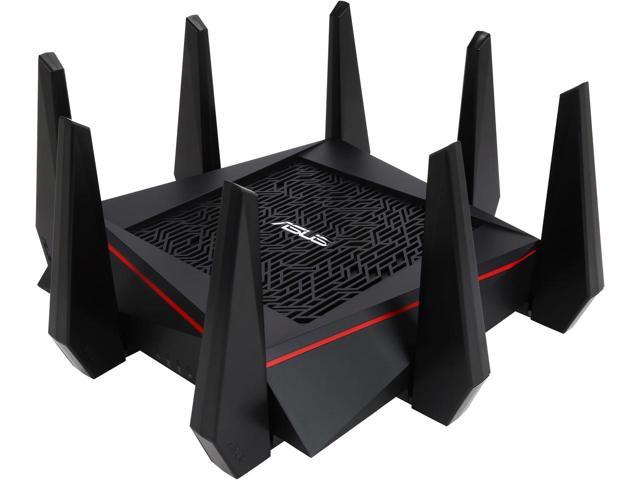
Recently, the hub has started acting up, and the WiFi keeps dropping out. So I purchased the beast pictured above, the Asus RT-AC5300. One of the benefits it affords, is the ability to create router-level VPNs.
To add a wrinkle to the issue, as I work from home, my work laptop has device-level vpn that I use to connect to our work resources. For performance reasons, I want to ensure that this vpn traffic does not go over the routers VPN: There’s no point taking the performance hit of double-vpning for no good reason. The stock AsusWRT firmware doesn’t allow this level of configuration, but the custom Asuswrt-Merlin does.
Of course, not going the path of least resistance always has its issues. And this time was no different. Attempting to set up the router with NordVPN or ExpressVPN via their openVPN setting files just caused my entire network to die.
After an hour with one of ExpressVPNs techs finally netted me the solution: Turns out the .ovpn files don’t set everything as required. The steps below detail how to set up OpenVPN on Merlin firmware for ExpressVPN and NordVPN to make them work.
Basic OpenVPN Setup
- Log into your Router admin page (via router.asus.com, or the default gateway IP – usually 192.168.1.1 by default).
- Select the VPN section
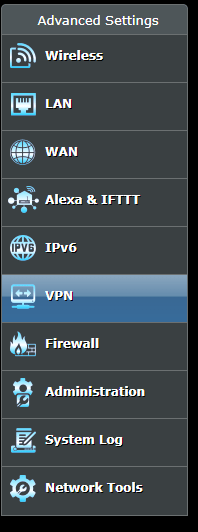
- Select the VPN Client tab
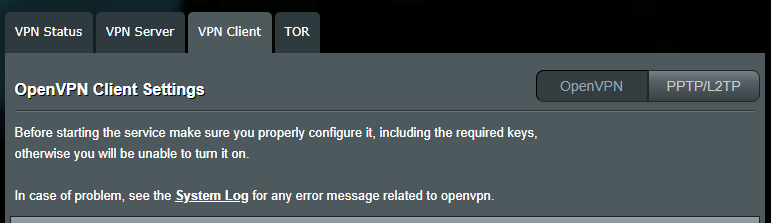
- Select an unused Client Instance from the dropdown. Be sure to use 1, 3 or 5 for best performance
- Select the .ovpn file you wish to use, and click upload

- Set the desired name

- Set the Accept DNS Configuration to either Strict or Exclusive. Use Strict if all your traffic will go via the VPN, or Exclusive if you intend to exclude certain devices/traffic

So far, so good. This is fairly standard. The .ovpn file will set most of the settings as required, but there’s a few things we still need to do in order for the VPN to work.
NordVPN
NordVPN actually have an excellent write-up for setting up OpenVPN on Asuswrt-Merlin. It covers all the steps already listed and one additional. For completeness, I’ll detail that step below.
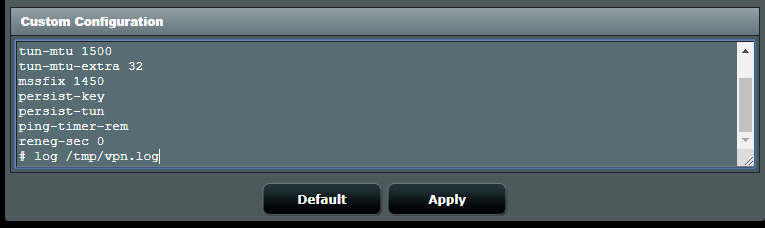
- Enter the following into the Custom Configuration setting box
remote-cert-tls server
remote-random
nobind
tun-mtu 1500
tun-mtu-extra 32
mssfix 1450
persist-key
persist-tun
ping-timer-rem
reneg-sec 0
# log /tmp/vpn.log
ExpressVPN
ExpressVPN requires just one additional step to set it all up:
-
-
- Set Compression to LZO Adaptive
-

Final Steps
With all the above steps completed, hit Apply, and then set the Service State switch to On.

You should find that the VPN comes up, and your internet browsing works as intended. If you want to make sure that your traffic is using the VPN, you can use the following sites:
-
-
- ExpressVPN
- NordVPN – The banner at the top tells you your NordVPN protection status.
-
Policy Based Routing
If, like me, you want to route only certain traffic through the VPN, you will want to set up Policy-Based routing.
 Kept in Tech
I spent hours attempting to get NordVPN working on my ASUS RT-AC86U with Merlin firmware, then succeeded in minutes after finding your article. So grateful, many thanks.
LikeLike
No problem, glad it helped.
LikeLike